Choose around the order you actually take
A custom order tracker for a handmade business needs to answer four questions: what has been agreed, which version is approved, when it is due and what happens next. A colourful status board cannot replace those answers. Start with a recent, uncomplicated order and compare how each format handles it.
For this guide, imagine order C024: a personalised crochet pouch, cream yarn, green lettering, collection on 24 October. The first proof has a spelling error; the customer approves proof v2. You have recorded £10 received against an agreed £28 total. These are fictional details for a workflow test, not a suggested pricing policy.
| Format | Useful when | Main trade-off |
|---|---|---|
| Spreadsheet | You compare many orders, dates and amounts in rows | Long briefs and several proof versions need clear references |
| Notion | You want an order page with notes and different database views | Views, filters and offline pages need setup and checking |
| Fillable PDF | You use one focused worksheet per order or print a bench copy | A folder of job sheets does not provide an automatic overview |
A spreadsheet makes the overview easy to scan
Give each order one ID and keep the date, current status, agreed amount and next action beside it. Use a separate reference for longer notes or proof files. In the example, the row could read ‘C024 · v2 approved · 24 Oct collection · £28 agreed · £10 received · confirm lettering placement before making’.
Excel supports calculated table totals, but the formula determines what is included. A visible subtotal and an all-orders total can answer different questions. Check the actual workbook rather than assuming that a filtered list includes every outstanding order. For this example, £28 minus £10 leaves £18; confirm any balance calculation against that known answer.
Choose this format if the overview is your daily starting point. If you spend most of your time squeezing paragraphs into cells, keep a clearly named brief beside the workbook or try an order-page workflow instead. Sorting should move complete records together, including IDs and deadlines.
Notion gives each brief room, with views to maintain
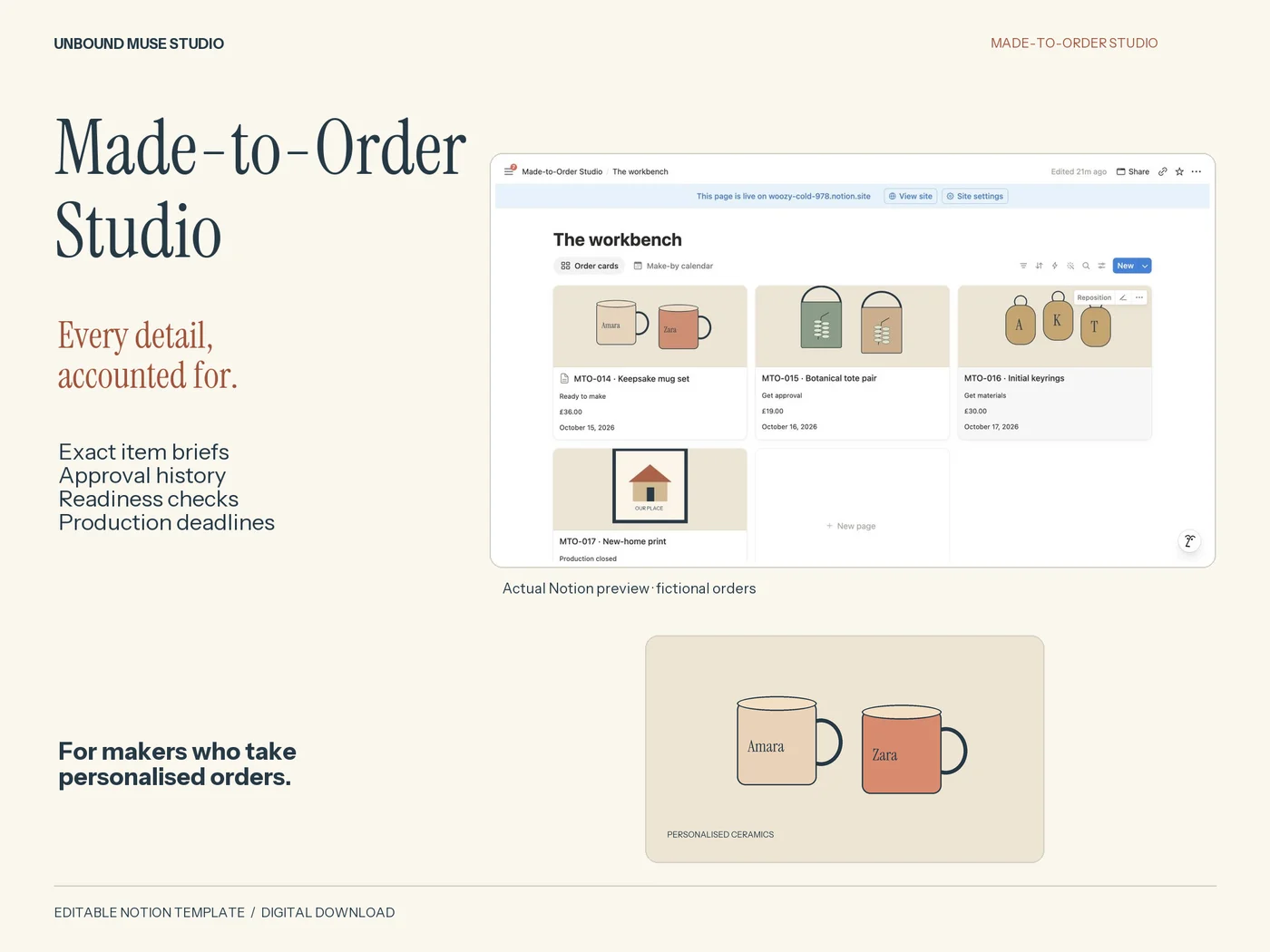
A Notion database can show the same records in a table, board or calendar. That makes it useful when you want an overview of deadlines and a page containing each order's notes. A view is a way of displaying records; it does not create another independent order list.
For C024, keep the approved version clearly named at the top of the order page. Put earlier proofs beneath it with their status. Then test a status change: can you still find the order in an all-orders view after it leaves ‘awaiting approval’? Filters can hide a record without deleting it.
Notion supports offline pages in its desktop and mobile apps, not in a web browser. Download the pages you need and test the actual order and supporting material before relying on them away from a connection. Do not assume that making one parent page available also makes every linked item available.
A fillable PDF works well as a focused job sheet
A PDF suits the moment when you need the agreed details beside the work. Save one named copy per order, with a revision number if you update it. A printed copy can travel with a project bag; a fillable copy can stay in the order folder. Keep a small index elsewhere if you need to see all deadlines at once.
Interactive fields and a printable page are different things. Adobe distinguishes fillable forms from flat forms, and provides Save As instructions for completed copies. Test your chosen reader with a long entry, save, close and reopen. Check that the approved wording is visible rather than hidden beyond a field's edge.
For C024, replace the bench copy when v2 is approved and mark the previous version superseded. A printed proof does not update itself when a customer sends a new message. That handover is the main maintenance job in a PDF workflow.
Run the same revision test before moving your orders
Try these actions with the fictional order in the format you already have. Choose the system in which a returning you—or a permitted helper—can identify the current brief without guessing. No purchase is needed to run this test.
| Change | Pass when… |
|---|---|
| Proof v1 becomes v2 | The approved version is explicit; the old version cannot be mistaken for current |
| Collection moves to 25 October | Your main deadline and any working copy both show the agreed date |
| Another payment is recorded | The amount and its reference are visible without treating a note as a payment receipt |
| The order changes status | You can still find it and see its next action |
| You close and reopen | The record, its files and your latest changes are accessible |
Use one main record and make the handover explicit
Mixing formats can be useful: a spreadsheet overview with a printed job sheet, for example. Decide which is authoritative, then add ‘working copy made on…’ to the other. When a brief changes, update the main record and deliberately replace the working copy. Do not maintain three full versions just because a bundle includes them.
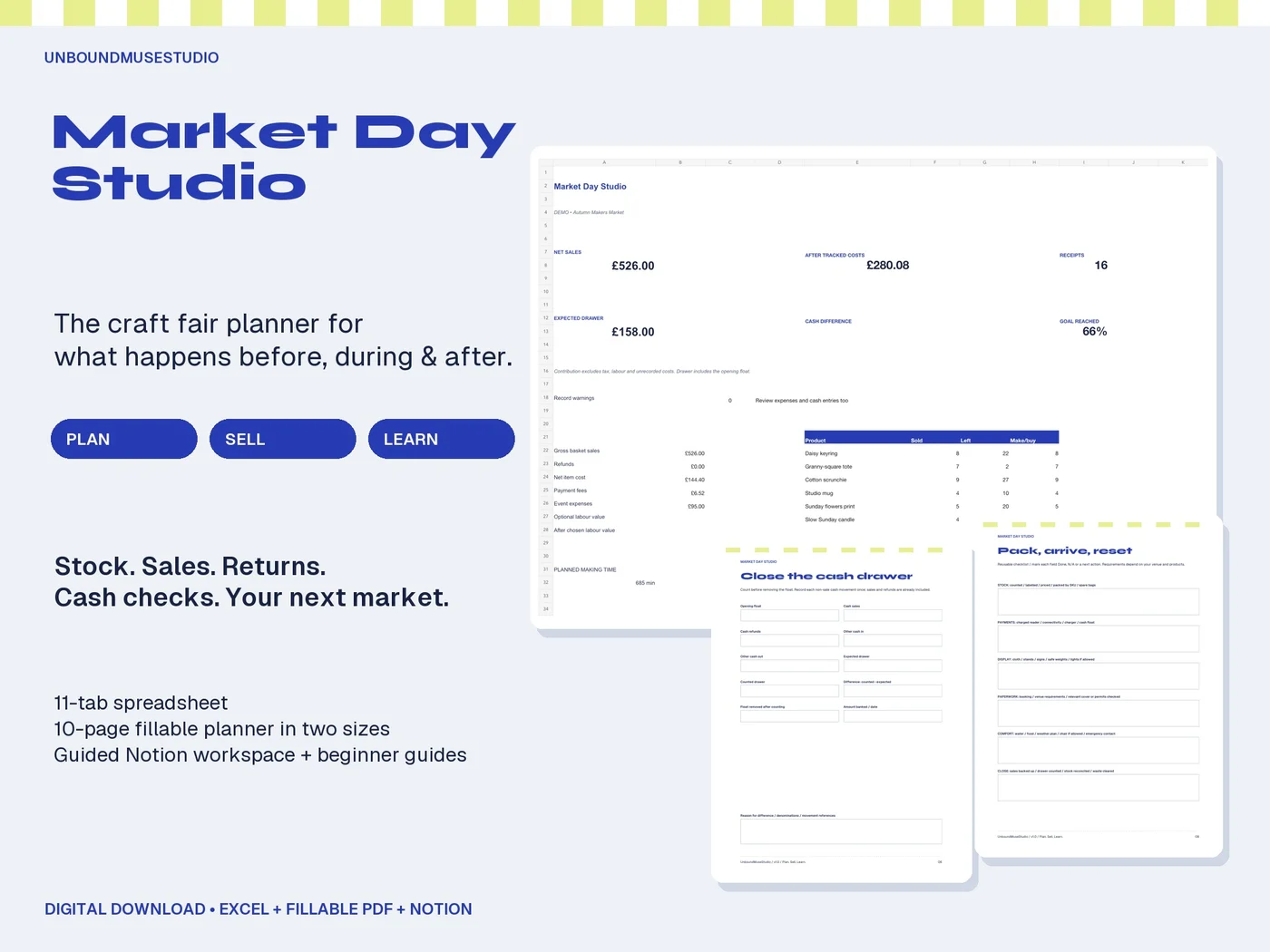
Made-to-Order Studio includes spreadsheet, fillable PDF and Notion formats with a beginner guide and example. They are independent manual records: they do not sync, collect payments, send messages or deduct stock. Supporting proof records do not automatically update the order's confirmation fields. It fits a maker who wants a prepared structure and will keep that structure current.
If your existing sheet passes the handover test, keep using it. If the missing piece is what to record, start with our step-by-step custom-order guide before changing software.