Choose one place for the current version of your rota
A rotating shift planner needs to show what is confirmed now. If your schedule exists in screenshots, messages and a calendar, decide which personal record you will update whenever the employer’s rota changes. The employer’s official schedule remains the reference for your work commitments.
Add a ‘last checked’ date and a note of where the rota came from. Keep tentative overtime or swaps labelled as proposed. Colour can help scanning, but include text such as ‘confirmed’ or ‘awaiting approval’ so meaning does not depend on colour alone.
Record the end date as well as the start date
A shift beginning at 22:00 on Monday and ending at 06:00 on Tuesday spans two dates. Writing only ‘Monday night’ makes it harder to spot an appointment booked for Tuesday morning.
Use one record for the shift with a full start date and time and a full end date and time. On a weekly calendar, let the visible block cross midnight. If you choose to list hours under the starting date, write that rule down and use it consistently. Your employer may allocate hours differently for payroll purposes.
| Detail | Example |
|---|---|
| Start | Monday 19 October 2026, 22:00 |
| End | Tuesday 20 October 2026, 06:00 |
| Elapsed time | 8 hours |
| Unpaid break entered for this example | 30 minutes |
| Hours after that break | 7.5 hours |
Confirm how your employer treats breaks. Check shifts crossing a daylight-saving clock change separately: a simple local-time spreadsheet calculation may not reflect the actual elapsed time.
Calculate hours with dates, not just clock faces
For a basic Excel check, put the full start date and time in A2, the full end date and time in B2, and unpaid break minutes in C2. The decimal-hours formula is =(B2-A2)*24-C2/60. Format the result as a number. The example above gives 7.5.
This formula assumes valid dates, an end after the start and no clock-change adjustment. If the result is negative, or the break is longer than the shift, correct the inputs rather than hiding the result. Do not replace your employer’s timekeeping record with an unchecked personal calculation.
A personal hours total is not a payslip. Overtime rules, paid breaks, premiums and deductions need their own confirmed treatment.
Microsoft explains date/time subtraction and time-unit calculations in Excel ↗
Plan the space around the shift
The hours outside work are not automatically free. Add the commitments that affect whether a plan is realistic: travel, meals, household tasks, caring arrangements and the rest time you intend to protect. This is personal scheduling, not advice about how much sleep anyone needs.
Before adding a task, ask whether you will have the time, materials and access to do it. A phone call to an office may belong in its opening hours; a quiet household task may fit a different slot. Keep one flexible task list for work that can move when the rota does.
- Fixed: an appointment, collection time or other commitment you cannot casually move.
- Planned: a task you would like to complete in a particular window.
- Flexible: work that can move to a different day without creating a problem.
Make shift changes visible
When a swap is approved, update the shift and check the plans immediately before and after it. A change can affect travel, a shared meal or who is available for a household task. Put the approval reference in your own notes so you can find the relevant message again.
If you share a calendar, show only what the other person needs: for example, ‘working 22:00–06:00’ rather than confidential workplace details. Send a short summary of the changed availability through your normal communication method. A private spreadsheet will not update someone else’s calendar by itself.
A small weekly review you can repeat
Look seven days ahead from today, even if it is Thursday. Check the latest rota, verify overnight end dates, resolve tentative entries and choose a few personal priorities that fit the actual gaps. Leave some gaps unfilled so a change does not require rewriting every plan.
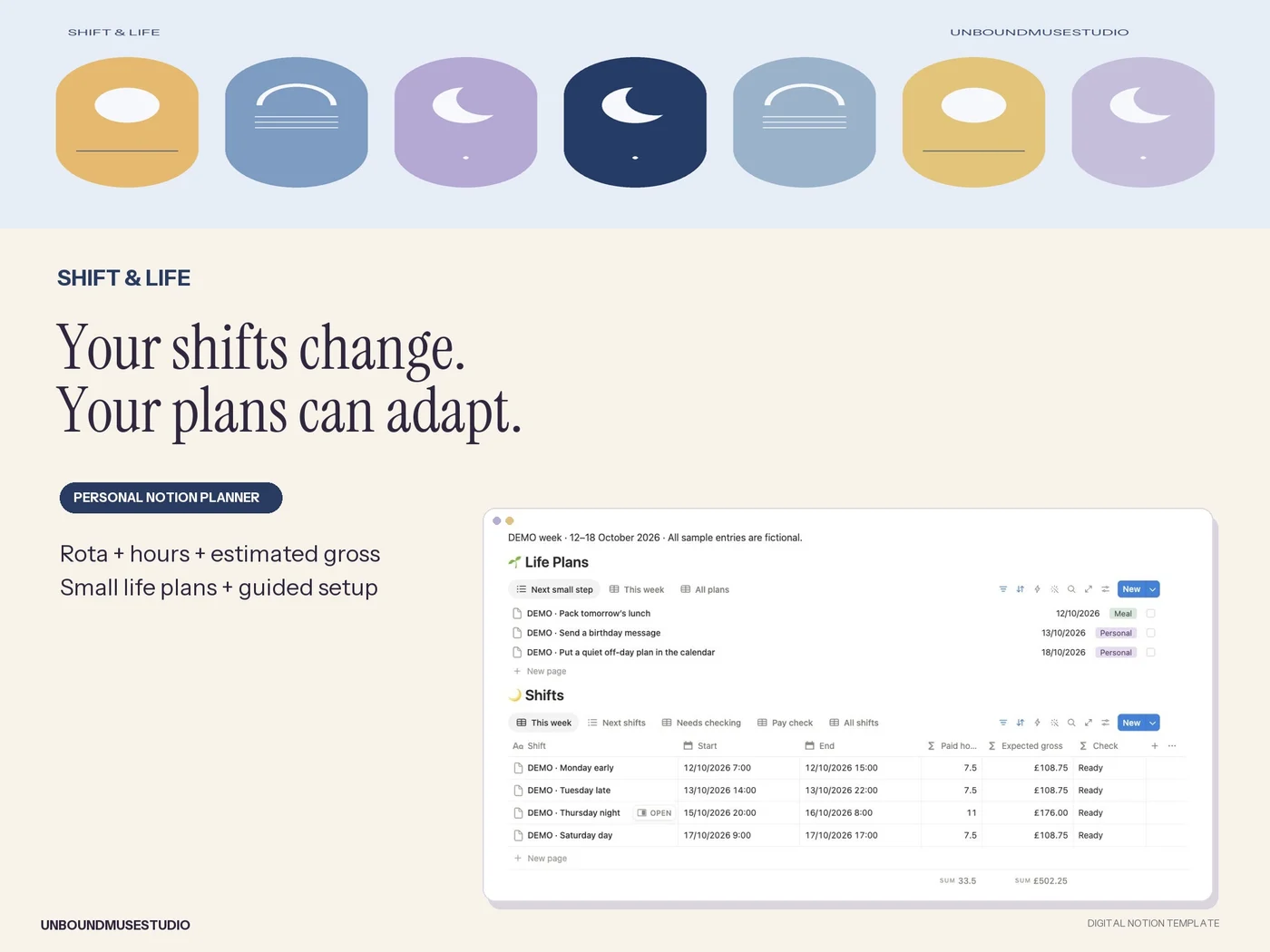
Shift & Life brings rota entries, hours and weekly planning together in spreadsheet, fillable PDF and Notion formats. There is no automatic rota import or calendar sync. Choose one version as your main record and follow its beginner guide before entering a full month.